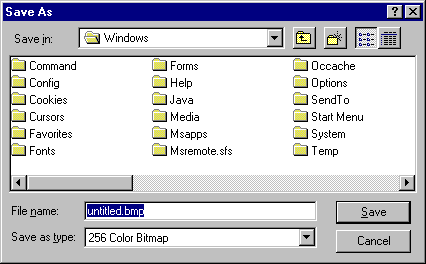
When you are satisfied with your masterpiece, we are going to save it to your disk. You should have no problem finding a save command. Stop for a second when you get to it.
You will find something that might look like this:
If you look carefully, you will notice that this dialog box is a
miniature file management program (!) Right now, it is pointed at
some strange directory. (Yours will be different than mine, I'm sure) The important thing to know is that the box shows you a directory
structure and some files. This probably isn't where you want to save
your painting. (Remember, we wanted to save it to our floppy disk,
which is called A) Try to back up to something you recognize. You
will eventually encounter something like this:
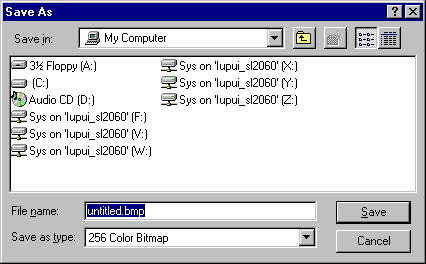
You can see that we now have a pointer to the A: drive. Cool! Click
on it to go there. (Make sure you have your disk in the drive
first!!!) Right now, we have never saved the file, so the program
doesn't know what to call it. Let's give it a name. MyPaint would be
a good name. If you're in Win 95 or the Mac system, you could use a
more elaborate name with spaces and a longer more descriptive title,
but MyPaint seems fine. If you want, you can put the .bmp part on
(making the name MyPaint.bmp) but if you don't add the extension, most
programs will add the right extension for you. It's a bad idea to
change the extension to anything but .bmp, because the extension is
what the operating system uses to know the file was created in
paintbrush. Type the name in the Filename box, or whatever facsimile
you see.
Hit the Save button. Wheeeeee! You should see the light on the A: drive light up. Close the Paint program. (Close it all the way. Don't just minimize it)
Re-open the paint program. Choose Open File from the file menu. Note that we will once again have to look for the A: drive.
Try to load up your file.
Close Paint one more time.